Let readers ask your docs a question
Ask AI answers readers in plain words, from your published pages, and links every answer to the pages it came from.
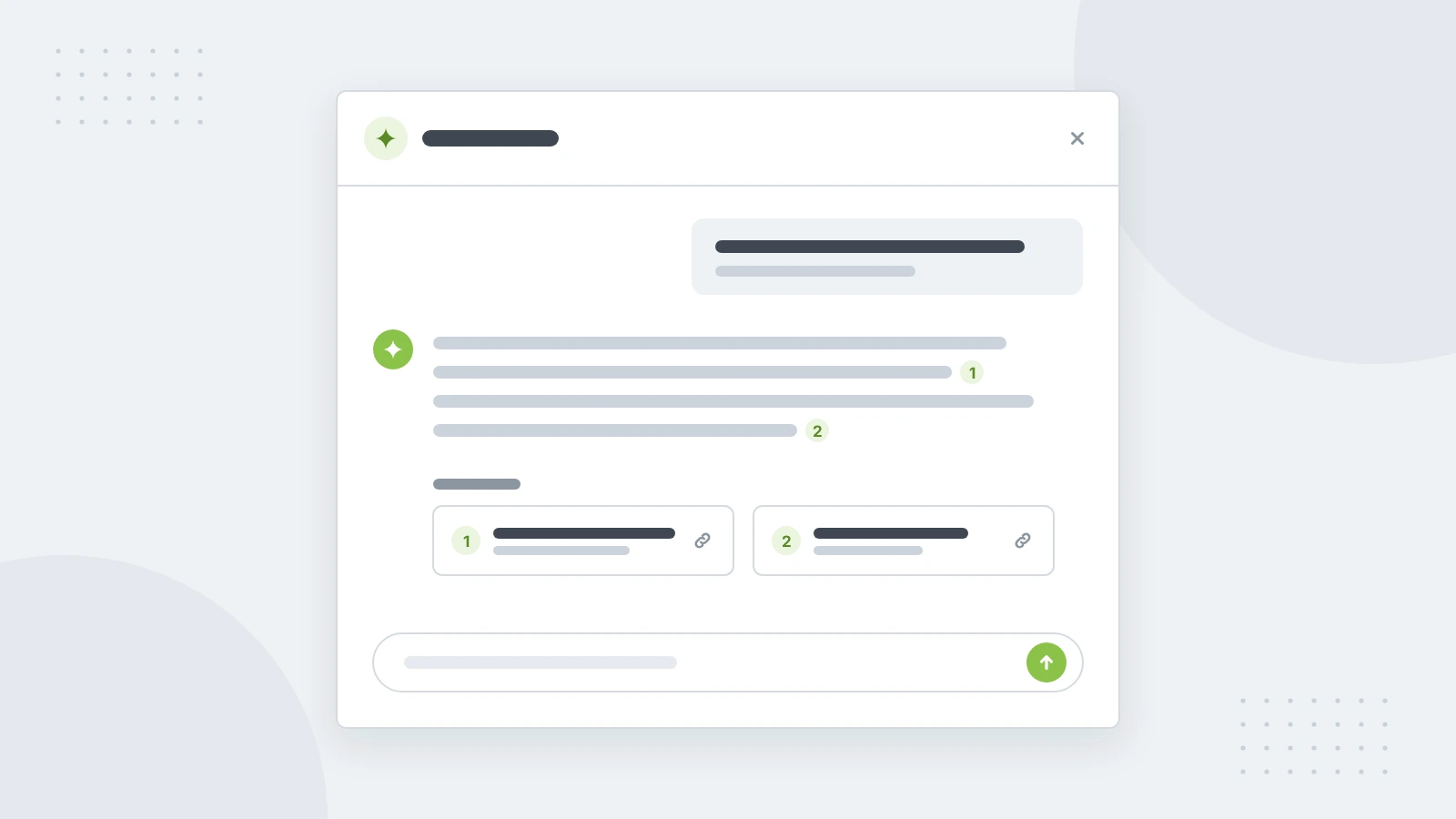
Search works when readers know the right word. Often they don't. They know what they're trying to do: "How do I rotate a key?", "Can I use this offline?". Ask AI lets them type that question and get an answer in plain words, taken from your published docs.
Answers come from your pages
Ask AI reads only the pages a reader can already open. Every answer links to the pages it used, with numbered sources underneath, so readers can check the details and keep reading. Private pages stay out of answers for readers who can't open them.
When the docs don't cover a question, Ask AI says so instead of guessing. Those questions are worth reading: together, they're a list of the pages you haven't written yet.
Turn it on
- Open your site and go to Customize → Configure.
- Turn on Show Ask AI. Add a short greeting and two or three suggested questions, so readers see what they can ask.
- Save. Your published docs now have Ask AI in the header, and search offers to ask it when readers type a question.
Readers can also open it from the keyboard with Ctrl I, or ⌘ I on a Mac.
See what readers ask
Every question shows up under Insights → Feedback → Reader questions, with the answer it got. Filter by Not in the docs to see what the docs couldn't answer, then write those pages first.
Docs that AI tools can read
More and more readers ask their own AI assistant instead of opening your docs. Two options under AI tools, on the same Configure page, help with that:
- llms.txt publishes an index of your pages, the file AI tools look for first.
- The MCP server lets tools such as Claude, Cursor and VS Code search and read your docs directly. Readers add it with one click from your docs.
Either way, your docs stay the source of the answer, and you can see how often AI tools use them under Insights → AI tools.