Write your first docs page in ten minutes
From a blank page to a published one: create a site, write with blocks, preview and publish.
A good first page doesn't need to be long. It needs to take one reader from "I just arrived" to "it works". Here's how to write one, from a blank page to a published one.
1. Create a site
In your workspace, choose New site, give it a name and decide who can read it: everyone, people with a password, or only members of your workspace. You can change this later in Site settings → Access. The new site opens in the editor with a few starter pages.
2. Write with blocks
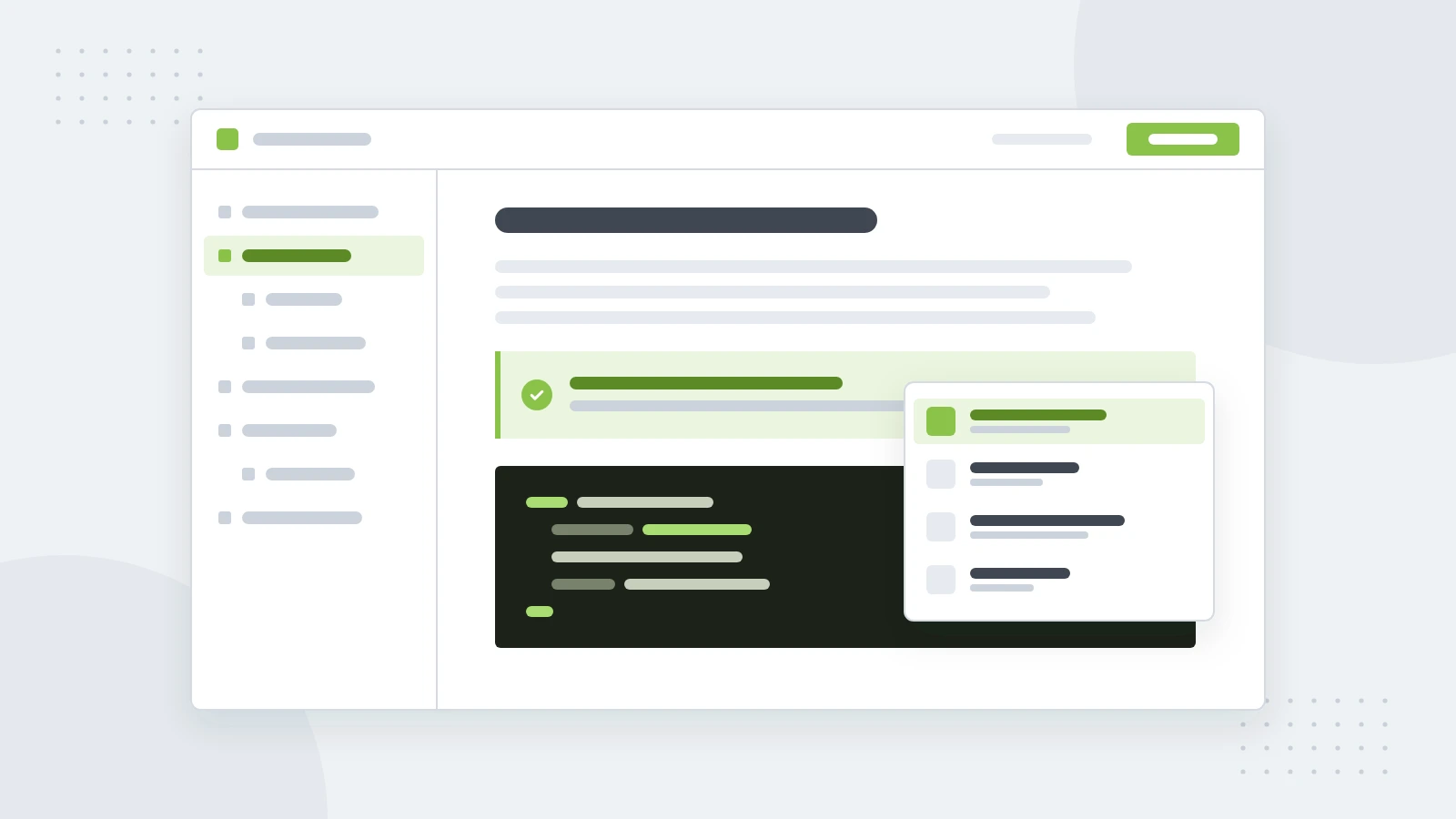
Type / on an empty line to open the block menu. Headings, lists, tables and images are there, along with the blocks docs need most:
- Callouts for the one thing readers mustn't miss.
- Steps for anything readers do in order.
- Code, grouped in tabs when you show the same request in several languages.
- Tabs for instructions that differ by platform.
Changes save as you type, and every page keeps its full history, so you can always go back.
3. Preview, then publish
Nothing you write reaches readers until you publish. Preview shows the whole site as readers will see it, drafts included. When it looks right, Publish sends every change out at once, as one release. If something isn't right after all, open Releases and put an earlier one back live.
What makes a first page work
- Start with the result. "Send your first request in five minutes" tells readers what they'll get.
- List what they need first: an account, a key, a tool. Nobody likes finding out at step four.
- One action per step. If a step has an "and" in it, it's probably two steps.
- End with where to go next. Link to the two or three pages most readers open after this one.