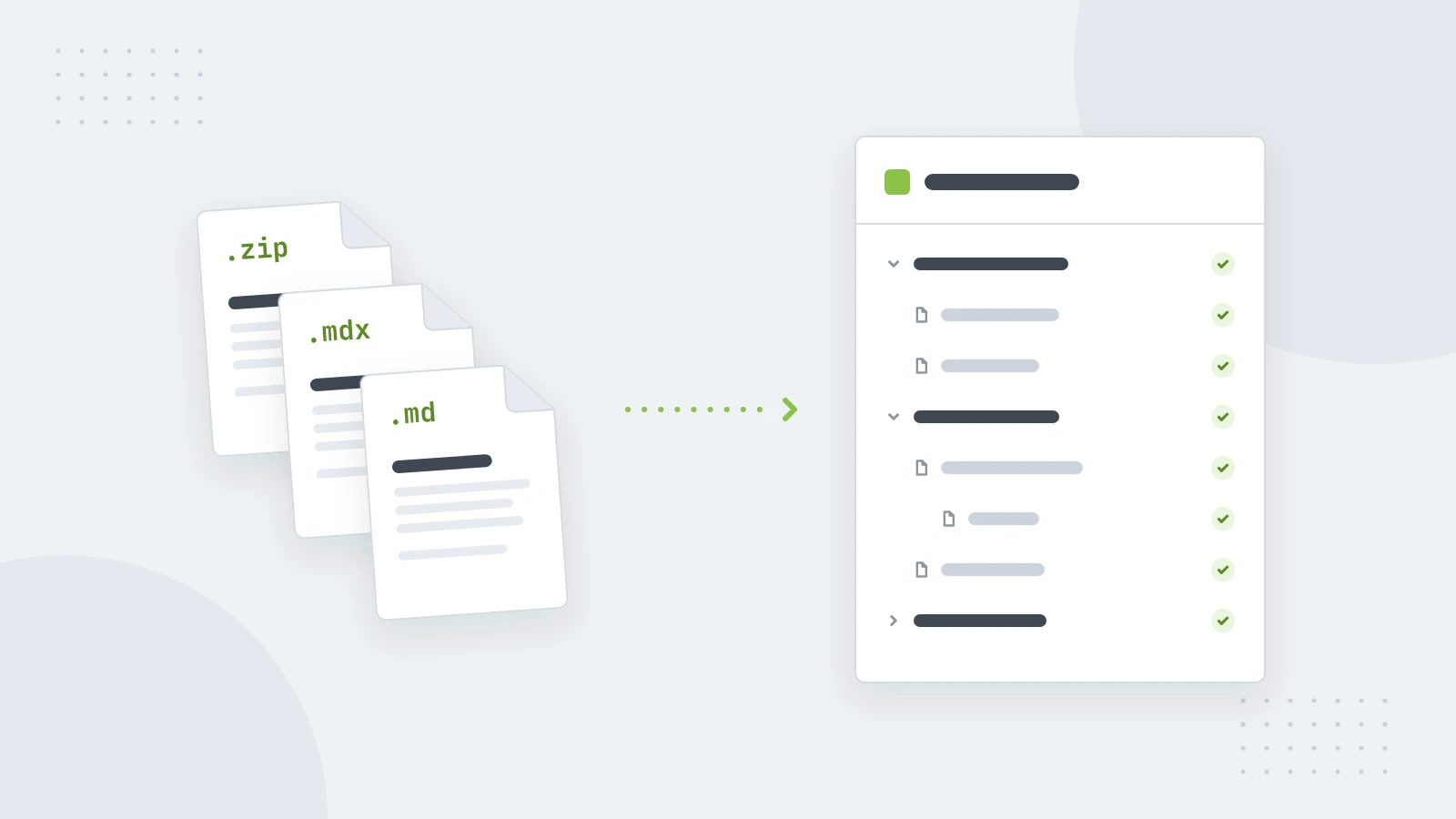
Put your docs on your own domain
Connect an address like docs.example.com in a few minutes, then make the docs look like the rest of your site.
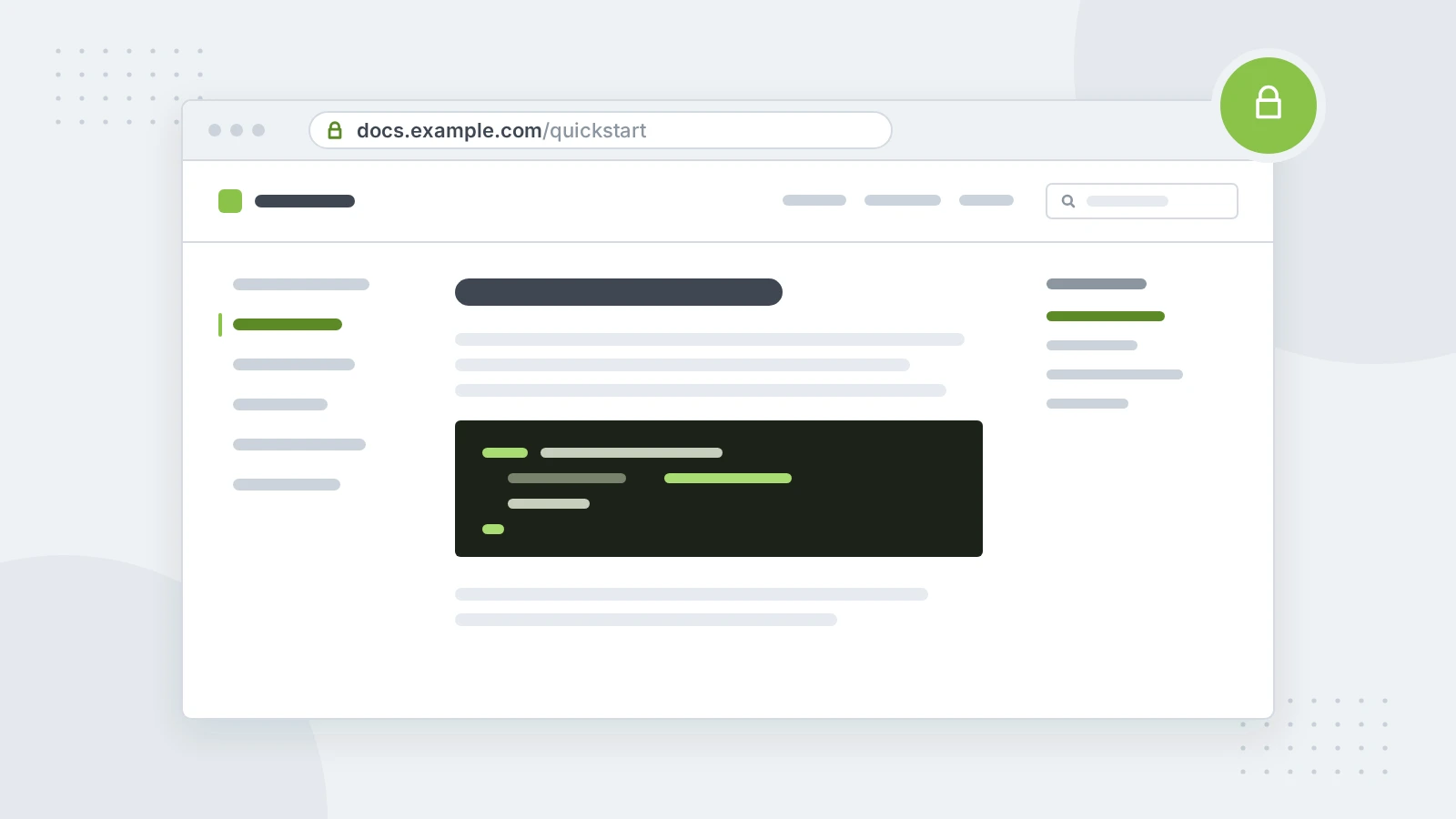
An address like docs.example.com tells readers they're in the right place. Connecting one takes a few minutes of work and a short wait for DNS.
Add the domain
- Open Site settings → Domains and choose Add domain.
- Type the address you want, for example
docs.example.com. - Add the DNS records shown there at the company where you manage your domain.
Wait for the check
The domain shows Waiting for DNS until the records work. DNS changes can take anything from a few minutes to a few hours, and the domain is checked again on its own, so there's nothing to keep refreshing. Once the records work, the domain page tells you when your docs are live at the new address, with HTTPS.
Make it feel like home
Readers notice when docs look like part of your product. In Customize:
- Theme: add your logo, then pick a theme, your colours and fonts, and light or dark mode.
- Layout: add header links, an announcement and a footer.
- Configure: choose the social preview image and what readers can do on each page.
Every change shows in a live preview before you save it.